Mobile Ringtones: Choose, Set, and Use Them Safely
Choose, set, and test a ringtone that sounds clear anywhere.
What Is a Mobile Ringtone?
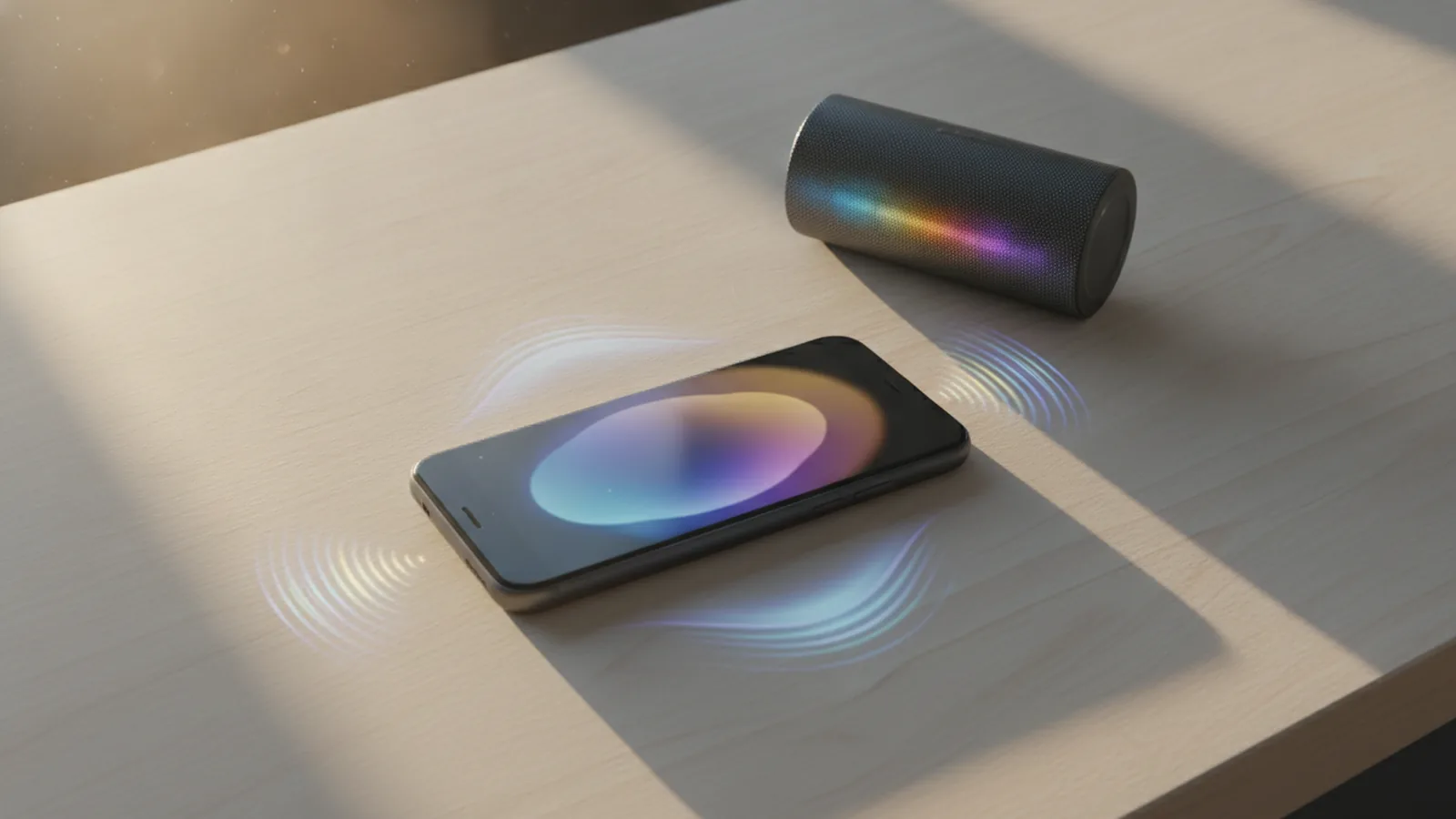
A mobile ringtone is the sound your phone plays for an incoming call. It may be a built-in tone, music clip, or voice recording.
Most phones use one ringtone for every caller. You can also assign a special tone to a key contact. This helps you know who calls without checking the screen.
Phones use other sounds for texts, alarms, email, and app alerts. Each sound has a different job.
- Call ringtone: Signals an incoming call.
- Message tone: Signals a new text or chat.
- Alarm sound: Wakes you or marks a set time.
- Alert tone: Plays when an app sends a notice.
A call tone often needs more volume than a message tone. A short alert can stay softer.
Good sound choices help you spot calls. They also stop every phone notice from sounding the same.
Start with one clear tone for calls. Then choose shorter sounds for messages and app alerts.
Think about the places where you use your phone. A calm tone may suit an office. A bright tone may work better outdoors.
How Ringtone Files Work
Your phone stores sound files in a sound library. The system plays the file linked to your call setting.
MP3 files work on many phones. M4R files are common for iPhone ringtones. OGG files appear on some Android phones.
File support can vary by phone model. Check the file type before moving a sound to your phone.
| File type | Common use | Key point |
|---|---|---|
| MP3 | Many phones | Broad support and small file size |
| M4R | iPhone tones | Common in Apple's ringtone system |
| OGG | Some Android phones | Good sound at a modest file size |
A file may not show in the ringtone list if the phone rejects its format. The sound may also need a special folder.
Clip length matters too. A sound between 15 and 30 seconds often works well.
Long clips may repeat at a poor point. Avoid long quiet gaps before the main sound.
Volume matters as well. A quiet clip can vanish outdoors. A loud clip may sound harsh indoors.
Android menus vary by phone maker. Google's sound and vibration guide covers the main settings.
How to Choose a Good Phone Sound
Choose a tone that stands out from common sounds. A clear melody or sharp beat often works well.
Keep private matters in mind. A rude or funny tone may draw unwanted notice. A neutral sound is safer in shared spaces.
Use a different sound for calls and alerts. This makes each notice easier to understand.
- Pick a sound with a clear start.
- Keep the clip short and easy to hear.
- Test it in a quiet room.
- Test it near traffic or other noise.
- Lower the volume if the tone feels sharp.
A clean start helps you notice the call at once. Strong mid-range tones often cut through busy places.
Do not rely on bass alone. Small phone speakers may not play deep bass well.
Try the tone at your normal volume. A tone that sounds good at full volume may feel harsh each day.
Test the sound with your phone in a pocket or bag. It must stay clear when the speaker faces away.
You can also assign tones to close contacts. Use this feature with care. Too many special tones can become hard to remember.
How to Set a Custom Ringtone
The steps vary by phone brand and system version. The basic path stays much the same.
On Android phones
Open Settings, then choose Sound and vibration. Tap Phone ringtone and pick a tone.
To use your own file, tap the add or plus button if shown. Select the file from your sound library.
Some phones need the file in a folder called Ringtones. Move it there if the file stays hidden.
Save the choice, then place a test call. Check the sound at your usual volume.
On iPhone
Open Settings, then tap Sounds & Haptics. Choose Ringtone and tap a tone.
Custom tones must meet Apple's file rules. Apple's custom ringtone guide explains the current steps.
Many iPhone users make tones with GarageBand. You can also buy tones through Apple's sound store.
Ask someone to call you after saving the tone. Test it with the phone in your pocket or bag.
- Keep a copy before editing the file.
- Use a short clip with a clean start.
- Check that the file came from a safe source.
- Remove files you no longer use.
Safe and Legal Ways to Get Ringtones
Use trusted stores, phone tools, or sounds that you own. Your own recording is often the safest choice.
Some music services limit song downloads for ringtone use. Buying a song does not always grant every reuse right.
Choose music with a clear license for ringtone use. Public domain and royalty-free sounds can be good options. Read the license before downloading.
Avoid sites that force strange apps or repeated redirects. Do not install a file that asks for unrelated access.
- Prefer your phone's built-in sound library.
- Use audio you made or licensed.
- Scan unknown files before opening them.
- Delete files that look suspicious.
- Keep a backup of tones you created.
Free does not always mean safe. A ringtone file should not need access to contacts, messages, or your camera.
Check the sound after downloading it. Remove it if the file name looks odd or the clip behaves strangely.
Respect other people nearby. A loud tone can disturb meetings, travel, and quiet places.
Use silent mode or vibration when a ringtone would cause a problem. A good tone should help you, not annoy everyone around you.
Step by step
- 1Choose a clear sound
Pick a short tone with a strong start. Avoid long silent openings and deep bass alone.
- 2Check the file type
Confirm that your phone supports the sound format. Use a supported folder if the phone needs one.
- 3Open ringtone settings
On Android, open Sound and vibration. On iPhone, open Sounds & Haptics.
- 4Add or select the tone
Choose a built-in sound or add your own file. Save the new ringtone setting.
- 5Test the result
Place a test call with the phone in a pocket or bag. Adjust the volume if needed.
FAQ
- What is a mobile ringtone?
- A mobile ringtone is the sound a phone plays for an incoming call. It can be built in, downloaded, or made from your own recording.
- What file format is best for a phone ringtone?
- MP3 works on many phones. M4R is common for iPhone tones, while some Android phones also use OGG.
- How do I set a custom ringtone on Android?
- Open Settings, choose Sound and vibration, then tap Phone ringtone. Select a built-in tone or add a supported sound file.
- How do I set a custom ringtone on iPhone?
- Open Settings, tap Sounds & Haptics, then choose Ringtone. Custom tones must follow Apple's file rules.
- How long should a ringtone be?
- A 15 to 30 second clip often works well. Choose a clear start and avoid long quiet gaps.
- Where can I get safe and legal ringtones?
- Use sounds you made, bought for this use, or received under a clear license. Avoid files from sites that demand odd apps or access.