Legal
Delete Your Mobile App Account
You can permanently delete your MobileRings mobile app account directly from the application.
Last updated: 31 August 2026
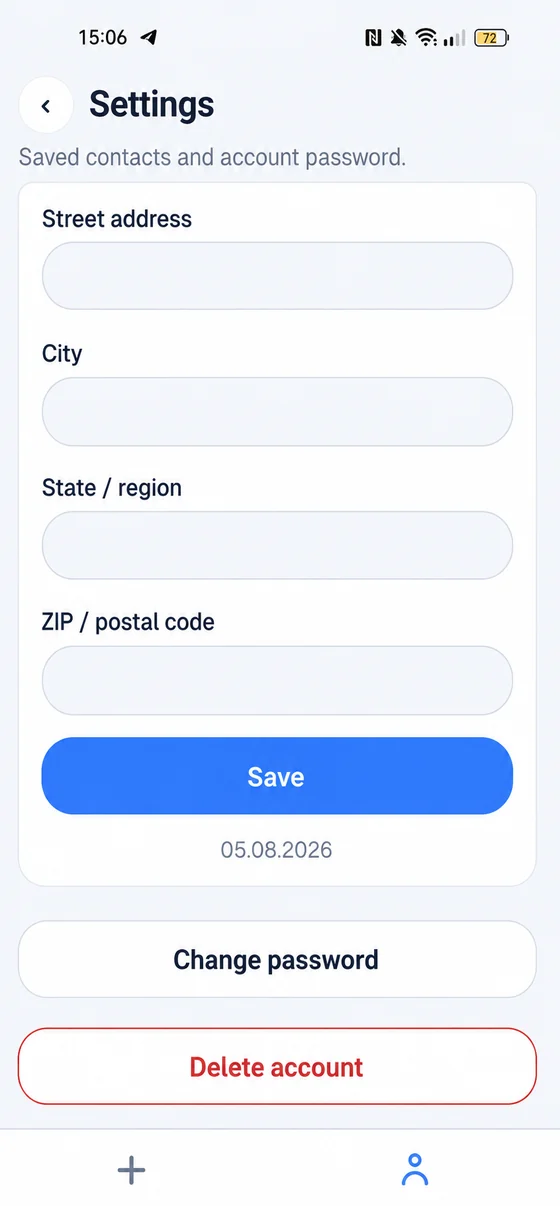
You can permanently delete your MobileRings mobile app account directly from the application — the whole request is handled inside the app, on the same screen where you manage your saved contacts and your account password.
This page describes the mobile app account. Deleting it is permanent and cannot be undone.
How to delete your mobile app account
- 1Open the Account section in the MobileRings app.Tap Account in the bottom navigation bar. It opens the Settings screen that holds your saved contacts and your account password.
- 2Tap Delete Account.The Delete account button sits at the bottom of that screen, under Change password.
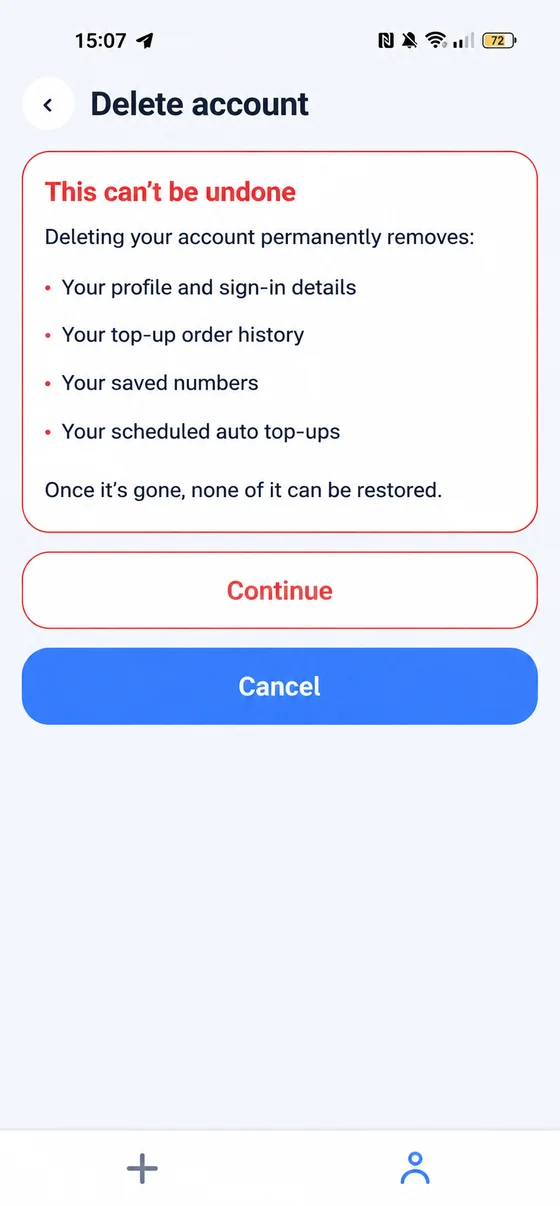
- 3Confirm the deletion.A confirmation screen lists everything the deletion removes. Tap Continue to go ahead, or Cancel to keep your account.
Once confirmed, your mobile app account will be deleted.
What it looks like in the app
The two screens below show where the option lives: the Account section on the left, and the confirmation step that follows on the right.