How to Make a Round Logo (With Canva Steps)
Learn how to design a round logo. Follow a simple Canva workflow for shapes, spacing, text, and export settings.
Why round logos work and when to use one
Round logos feel friendly and balanced. They also fit well on favicons, social icons, and small brand marks.
A circle has no corners, so it can look smooth across sizes. That matters when your logo shrinks to an app icon or a watermark.
You should pick a round style when your brand is approachable. It also fits fitness, communities, studios, and apps.
That said, some brands need sharp angles. If your identity relies on strict geometry, a round mark can clash.
- Good for icons, profile pics, stickers, and stamps
- Great for mobile apps and small UI labels
- Risky for brands built on sharp, edgy shapes
Core rules for how to design a round logo
Round logos need good spacing. Keep the key mark in the center so it stays readable.
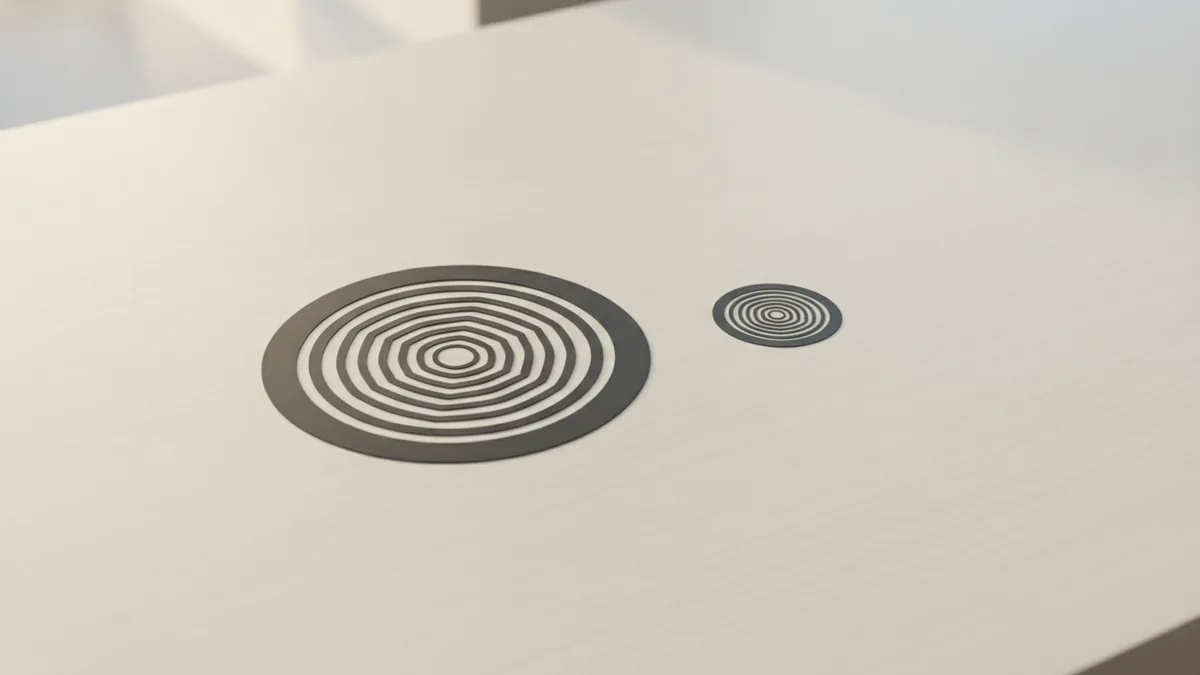
Plan your content for two sizes: a large cover and a tiny icon. Test both in Canva before finalizing colors and fonts.
For text, use an inner ring or a short headline. Long paragraphs will curve poorly in small circles.
Also watch stroke weight and contrast. Thin lines disappear at small sizes.
| Element | Round-logo tip |
|---|---|
| Center icon | Use one clear symbol with strong contrast |
| Outer text | Keep it short and curve it evenly |
| Colors | Limit to two or three brand colors |
| Line weight | Make strokes bold for icon-size views |
- Center stays clean and readable
- Outer ring stays short and consistent
- High contrast helps on dark or light backgrounds
How to create a round logo in Canva (full workflow)
Start by setting up a square canvas. Canva’s editor works best when your circle fits inside a square.
Then choose a circle shape and align it with your layout. You will use that circle as a guide for spacing.
Next, place your logo icon in the center. Use simple shapes first, then refine details once the layout looks right.
After that, add curved text for the ring effect. You can use a text-on-path tool or the right text alignment options in Canva’s editor.
- Create a new design with a square size (like 1000 by 1000 pixels)
- Add a circle shape as a background or alignment guide
- Insert your icon or build one from Canva shapes
- Add text and curve it to follow the circle edges
- Adjust spacing, then check readability at smaller preview sizes
- Export as PNG and SVG if you need clean edges
Step-by-step: make a round logo in Canva for common styles
Most round logos fall into a few layouts. Pick one style and build it cleanly in layers.
For example, a center icon with an outer ring works for brands with a short name. A badge style can add a second circle for depth.
Another popular style is a monogram in the center. This keeps the logo simple and readable at tiny sizes.
Below are quick recipes you can copy inside Canva.
Style A: center icon + outer ring text
Use a solid circle or transparent circle guide. Put the icon in the center, then curve the brand name around the edge.
Keep the top line short. Put the rest on the bottom so both arcs stay balanced.
Style B: badge circle with inner frame
Use two circles: one outer and one inner. Add a small spacer between them so text does not touch the frame.
This style feels more formal. It also helps when your icon has a lot of detail.
Style C: monogram in the middle
Choose one letter pair or a single initial. Use a bold font and center it in the circle.
Add only one ring of small text. Too much text will make the monogram hard to read.
- Choose one layout before adding text
- Use two circle guides to avoid text collisions
- Keep the center icon larger than you think
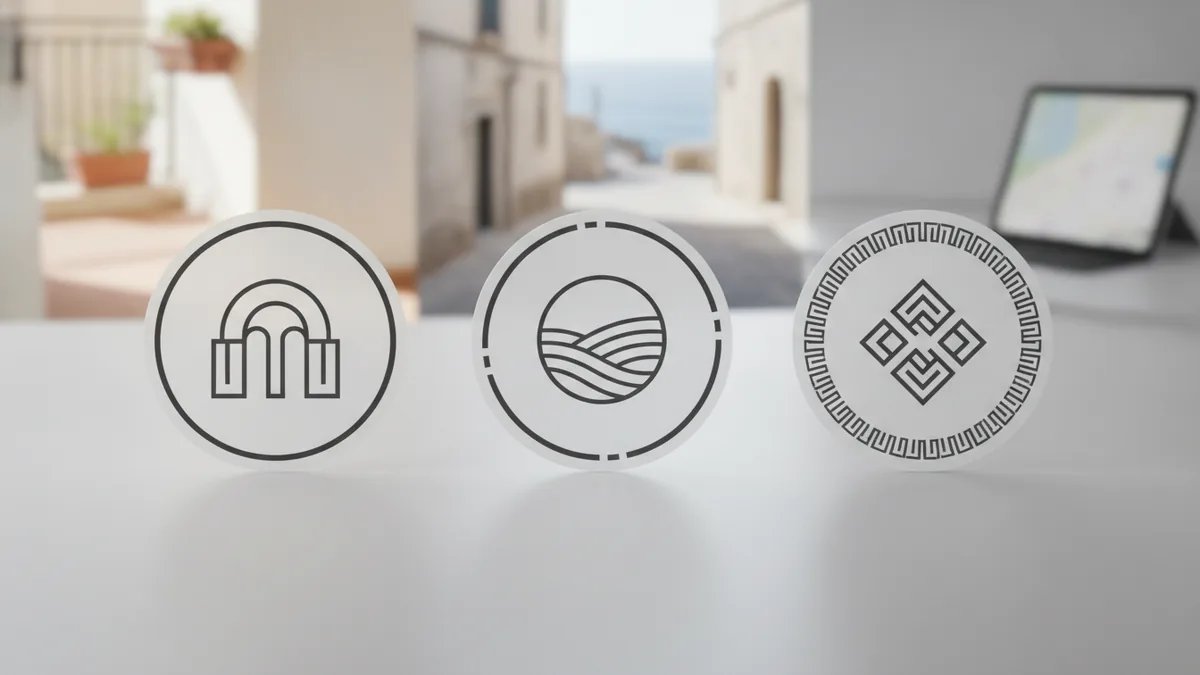
Export settings and file types for a round logo
Exporting matters for how your round logo looks in real use. A wrong file can blur your edges.
For web and social profiles, export PNG with a transparent background if needed. That keeps your circle crisp over different site colors.
For print or edits, export SVG or a vector-friendly format. Vectors scale without jagged edges.
Also keep a version with a full round background. Some platforms place icons on colored circles.
| Use case | Best export | Why it helps |
|---|---|---|
| Website header | PNG | Clean display on varied backgrounds |
| Social profile | PNG with transparency | Looks sharp in dark and light themes |
| Stickers and print | SVG (vector) | Scales for different sizes |
| App icons | PNG at multiple sizes | Prevents blurry rendering |
- Export a transparent PNG for flexibility
- Export SVG for future edits and printing
- Keep a solid-background version too
Common mistakes when you create a round logo
Many round logo problems come from layout. The most common mistake is crowding the edges.
If your outer text touches the circle border, it will look cramped. Leave a margin so letters have breathing room.
Another issue is inconsistent spacing. If the arc text looks uneven, adjust letter spacing or reposition the text path.
Finally, avoid low-contrast color combos. Your logo may pass on screen but fail on colored backgrounds.
- Text too close to the edge
- Thin strokes that vanish at small sizes
- Too many colors and visual noise
- Long outer text that wraps awkwardly
Quick checklist for how to make a round logo
Use this checklist before exporting. It helps you catch issues that only show up after you download.
Zoom out to icon size. If the center icon is not readable, simplify it.
Then check both light and dark backgrounds. That reveals low-contrast colors quickly.
Once it looks solid, export both transparent and solid versions.
- Center icon is the biggest readable element
- Outer ring text is short and evenly spaced
- Contrast works on light and dark backgrounds
- Stroke widths stay bold at small sizes
- You exported PNG and a vector option
FAQ
- How to make a round logo in Canva?
- Create a square design, add a circle shape, then place your icon in the center. Add curved text for an outer ring if you want a badge style.
- How do I create a round logo without the text looking messy?
- Keep the outer text short and use even spacing. Also leave a margin so letters do not touch the circle edge.
- What size should I use for a round logo export?
- Use a large square canvas like 1000 by 1000 pixels. Then export PNG for web and SVG for crisp scaling.
- Can I make a round logo in Canva with a transparent background?
- Yes, export a PNG with transparency. That helps the logo sit cleanly on different site colors.
- How to design a round logo that stays readable at small sizes?
- Make the center icon the largest element and use bold stroke widths. Test it by zooming out to icon size before exporting.